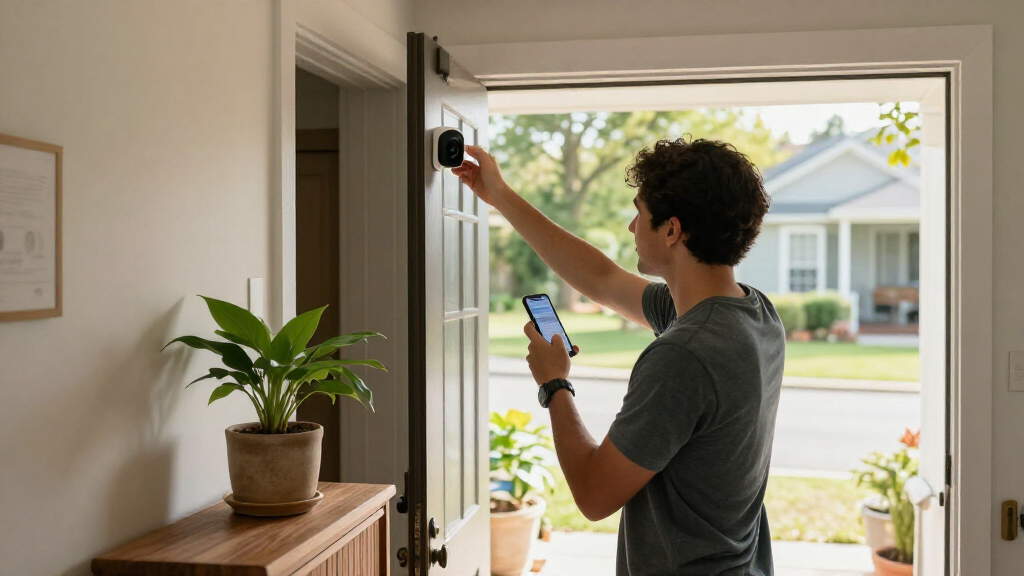

TL;DR
Smart home security cameras let you view live video, receive alerts, and save footage, but the features depend on the model, your internet connection, and sometimes a subscription. Before buying, check the camera’s field of view, night performance, storage options, power needs, privacy controls, and compatibility with your smart-home setup. Good placement and account security matter as much as resolution.
A crisp 4K image can still miss the moment you care about if your camera points at the wrong patch of driveway. Smart home security cameras have grown from simple motion-triggered recorders into connected devices that can stream live video, send alerts, store clips, and work with other smart-home products. That convenience is real, but it comes with choices about placement, power, storage, subscriptions, and privacy.

Get home appliances delivered free with Prime
- Fast, free delivery on millions of items
- Prime Video, Amazon Music and more included
- Member-only deals all year
This guide helps you sort those choices before you spend money or mount a camera. You’ll see which features matter in everyday use, how to avoid common installation and alert problems, and how to set realistic expectations. Think of a camera as a window and a doorbell combined: it can show you what’s happening, but it cannot step outside and stop an incident.
Pick indoor, outdoor, doorbell, wired, or battery power based on where the camera will go and what it should capture.
Check field of view, placement, lighting, and Wi-Fi before treating resolution as the main measure of image quality.
Confirm which recordings and detection features require a subscription, and how long saved clips remain available.
Tune motion zones and alert sensitivity to reduce repeated notifications while checking that important events still trigger clips.
Use unique passwords, two-factor authentication, updates, limited sharing, and privacy-minded camera angles.
Choose a camera that fits the place you want to watch
A smart home security camera is a connected camera that captures video and can send footage or alerts to your phone, a storage service, or a home hub. Indoor cameras suit shared rooms, outdoor cameras are built for weather, and doorbell models focus on the entryway. Start with the location and job, then compare features. That order matters because the mounting spot determines what power is available, what the camera must withstand, and which details need to be visible. A feature that sounds valuable on a product page may add little if the camera cannot see the event clearly from where it has to go.
For example, a camera watching a side gate needs a weather-rated housing and a view of the latch, while a living-room camera may need a physical privacy shutter. A battery model can go where wiring is awkward, but it needs charging; a wired model avoids frequent recharging but needs a suitable power source. Solar charging can help some outdoor cameras, though shade and short winter days affect performance. This is a practical tradeoff: flexible placement may mean more maintenance, while dependable power may limit where the device can be installed. Think about how often you are willing to retrieve and recharge a camera before choosing a location that is hard to reach.
Resolution is only one piece of the picture. A wide field of view may show the whole porch, while a narrower view may reveal more detail on a face or package. Low-light performance matters too: a camera facing a bright streetlamp can produce glare, and an infrared night image may show shapes clearly without showing color. In other words, a larger image file does not guarantee a more useful recording. The camera must frame the event, keep enough detail at the relevant distance, and handle the lighting at the time it occurs. Look for sample footage from similar conditions, not just the resolution number.
Before buying, check whether the features you want work without a paid plan. Some models offer live viewing and local recording at no extra charge, while cloud history or advanced person and package alerts may require a subscription. A lower sticker price can turn into a higher long-term cost if you need a plan for basic functions. Compare the cost over the period you expect to keep the camera, and check what remains usable if you cancel. This helps distinguish a one-time purchase from a service commitment that affects whether you can review recordings later.
Products Worth Considering

TCL 55-Inch F7D Series QLED 4K UHD Smart Fire TV (2026)

iRobot Roomba Plus 405 Combo Vacuum and Mop Robot with AutoWash Dock

Roborock Q7 M5+ Robot Vacuum and Mop with Self-Emptying Dock
As an affiliate, we earn on qualifying purchases.
See what matters in a camera feature comparison
The best camera for you is the one whose view, power, storage, and alerts fit its location and your routine. A doorstep camera has different needs from one watching a garden gate. Compare the practical tradeoffs before focusing on a long feature list. For instance, a battery camera can simplify installation at a remote gate, but frequent activity may increase charging; a wired camera avoids that chore but could require a suitable outlet or professional installation. The right choice depends on which constraint is easier to manage at that specific spot.
| Camera setup | Good fit | Tradeoff to check |
|---|---|---|
| Indoor, plug-in | Shared rooms or a pet’s usual spot | Needs an outlet; plan carefully around household privacy |
| Outdoor, wired | Driveways or entrances with a suitable power source | Placement may require electrical work |
| Outdoor, battery | Gates or sheds without nearby power | Activity, temperature, and settings affect charging frequency |
| Video doorbell | Front doors and visitor alerts | Compatibility with your existing chime and door setup varies |
Imagine you want to watch a driveway where cars pass all day. A motion camera with a broad, poorly aimed view may fill your phone with alerts. Motion zones and person or vehicle detection can help, but those features vary by device and may sit behind a subscription. Check the exact model’s plan details instead of assuming every feature on the product page comes included. This affects more than convenience: repeated irrelevant alerts can lead you to mute notifications, making it easier to overlook the one alert that matters. A narrower view or carefully drawn zone can reduce noise, though it may also exclude activity at the edge of the frame.
Also check whether your smart-home platform supports the action you want. A camera might display live video on a smart screen yet fail to trigger your lights or save recordings through that same system. Compatibility often applies feature by feature, so look for the specific combination you plan to use. A device that merely appears in an app may not participate in the routines you expect; confirm recording, alerts, and automations individually. That check can prevent a setup where each component works alone but the handoff between them does not.
Place your camera so it catches useful details
Good placement gives a camera a clear view of the area you care about, enough light to record it, and a reliable connection. Start with a doorway, driveway, or shared approach, then check the view from the camera’s actual position. Angle and lighting can matter more than another jump in resolution. The aim is to capture the event in context and at a useful distance: a camera that sees a visitor only after they have passed the door may record motion without showing who approached or what they did.
Here’s a practical setup sequence for an entry camera:
- Choose the event you want to see, such as someone approaching the front door or opening a gate.
- Mount the camera where faces and hands enter the frame, without pointing into a neighbor’s window or a private area.
- Check the image at midday and after dark; look for glare, deep shadows, and blocked corners.
- Test Wi-Fi at the mounting spot and adjust motion zones to exclude passing traffic or swaying branches.
- Walk through the scene yourself and confirm the alert arrives and the saved clip shows the event.
For instance, a camera mounted high under an eave may capture a wide view of the porch but mostly show the tops of visitors’ heads. Lowering or angling it toward the approach can make the clip more useful. Keep it clear of gutters and plants that block the lens, and check the view again after seasonal growth or a change in outdoor lighting. A test walk also reveals blind spots that a static preview can hide, such as a visitor being obscured by an open door or a package landing outside the detection zone.
If running a new power cable requires electrical work, use a licensed professional. Turn off power before any work on an existing circuit, and follow appropriate safety steps and local code and permit requirements. A camera project should never put you at risk or bypass rules that apply to your home.
Pick storage that matches the footage you want to keep
Camera storage determines where your clips live and how easily you can retrieve them later. Cloud storage makes remote access convenient, while a memory card or home hub can keep recordings local. Some cameras offer both, but a local copy is useful only if the camera supports recording during an internet outage and the device still has power. Storage is part of reliability: a camera that detects an event but cannot retain or retrieve its clip may not meet the reason you bought it.
Think of storage like a notebook: event clips record a few marked moments, while continuous recording fills pages all day. If you only need to check who rang the doorbell, event-based clips may be enough. If you want a longer record, continuous recording uses much more storage and may require a powered camera, a larger drive, or a particular plan. Event recording is economical, but it depends on detection working and may omit what happened just before or after a trigger. Continuous recording gives more context, at the cost of storage capacity, bandwidth, and potentially higher service fees.
Before choosing, check how long clips remain available, whether downloads are possible, and what happens if you cancel a subscription. A “free” plan may include live viewing but keep no cloud history, or offer only a short clip window. Those limits matter when you discover an event after the recording has expired. Check retention against how quickly you realistically review alerts: a short window can be sufficient for daily checks but frustrating if you are away or only notice a problem later. Downloading important footage promptly can preserve a copy beyond the service’s retention period.
Picture a delivery arriving while your internet service is down. A camera that records to local storage may still capture the visit, but you may not see the alert remotely until the connection returns. Test this behavior before relying on it, and remember that no recording system can help if the camera loses power, disconnects, or fails to detect the event. Local storage trades dependence on a cloud connection for other considerations, such as whether the device can be reached or the card removed if the camera is stolen or damaged. Understand the failure modes that matter at your location before treating either option as a complete backup.
Cut down false alerts without missing the useful ones
Smart camera alerts become useful when they tell you about activity you care about and ignore the routine motion around it. Motion zones, sensitivity, and detection categories can reduce repeated pings, but the right settings depend on the camera’s location and the people or animals nearby. The goal is a workable balance: overly sensitive settings create alert fatigue, while overly restrictive settings can hide an event you meant to catch.
Say your front camera watches a porch beside a busy sidewalk. If every passing cyclist triggers a clip, start by masking the sidewalk with a motion zone or lowering sensitivity. If the camera supports people or package detection, test that mode during ordinary activity before trusting it. AI-assisted features can make alerts more specific, but accuracy and availability differ by model and plan. Detection categories are a filter, not a guarantee: an object may be misclassified, and the camera’s framing or lighting can affect whether it recognizes a person or package at all.
False alerts often come from moving shadows, tree branches, headlights, insects close to the lens, or a camera aimed at a road. Change one setting at a time and check the results over a few days. If you turn sensitivity down too far, the camera may miss a visitor who approaches slowly or stays near the edge of the frame. Keeping notes on which events still trigger clips can help you see whether the problem is the sensitivity, the zone, or the camera angle, rather than changing several settings and losing track of the cause.
For a battery camera, frequent motion and live viewing can also mean more charging. If a device needs attention every few weeks, review its view and alert settings before blaming the battery itself. A smaller, better-aimed detection area can make your notifications calmer and help extend battery life. This links alert tuning to both convenience and upkeep: fewer unnecessary wake-ups can preserve charge, but a zone that is too small can miss activity. Recheck the balance after seasonal changes or changes in household routine.
Protect your footage and the people in the frame
A camera’s privacy depends on where it points, who can open its account, and how the footage is stored or shared. Use a unique password, turn on two-factor authentication where available, install software updates, and review shared-user access. These steps reduce exposure, though no connected device is risk-free. A unique password limits the damage if credentials from another service are exposed, while two-factor authentication adds a second check against someone signing in with the password alone. Updates can address security problems, so leaving a device unsupported or out of date can increase risk over time.
For example, if you give a neighbor temporary access while you travel, remove that access when you return. Keep household members informed about indoor cameras, and avoid placing cameras where people expect privacy. A device aimed at your own entrance can still capture a neighbor’s window or part of a public walkway, so adjust its angle and privacy masking where available. Limiting the view can reduce unnecessary recording and make it clearer whose activity the camera is intended to capture, while still preserving the entrance view you need.
Recording rules vary by location, especially when footage captures private spaces or audio. Check local requirements before recording or sharing clips. A short conversation with household members and visitors about where cameras operate can prevent confusion and help everyone know what the device records. Sharing a clip also spreads a copy beyond the camera account, so consider whether it contains unrelated people or sensitive details before sending it.
Also check whether the camera analyzes video on the device or sends it to a cloud service. On-device processing can reduce how much footage needs to leave your home for some features, while cloud services may offer easier remote access and storage. Neither label answers every privacy question; read the product’s settings and retention details to understand what happens to clips. Ask what is uploaded, how long it is kept, and who can access it, since privacy depends on the data flow and account controls as well as the advertised processing method.
Use cameras as one layer of home security
A smart camera can help you notice activity, check on a delivery, or save a clip for later, but it cannot physically prevent an incident or guarantee an emergency response. Treat it as one part of a plan that also accounts for locks, lighting, power, and connectivity. Your camera is a lookout, not a guard. That distinction affects how you respond: an alert may arrive late or not at all, so security measures should not depend on seeing a notification in time.
Consider a shed at the back of a property. An outdoor camera might show someone opening the gate, but if the Wi-Fi signal drops at that corner, you may receive no alert. Test the connection from the installed position, and consider a compatible hub or another network solution if the signal is weak. Check what the camera does when the internet is unavailable rather than assuming live access and recording behave the same way. Some devices may continue local recording but lose remote alerts; others may stop recording too. Knowing which behavior applies helps you decide whether a hub, stronger network coverage, or a different placement is worth the cost.
Make a simple fallback plan: know how you’ll secure doors and windows, what you’ll do if an alert looks urgent, and whom to contact. If your camera or service is offline, you need another way to respond. Save important clips promptly if you may need them, since storage limits and account settings can affect how long they remain available. A saved clip can help you understand or document an event, but it does not replace immediate action when someone may be in danger.
After installation, review the setup every few months. Test night footage, check batteries and updates, and confirm that the right people still have access. A camera that worked well in spring may face longer darkness, thicker foliage, or a weaker battery in winter; a little maintenance keeps the view useful. This recurring check also catches changed routines, such as a parked vehicle now blocking the approach, before a blind spot becomes apparent during an incident.
Frequently Asked Questions
Do smart home cameras need Wi-Fi?
Most connected cameras rely on Wi-Fi for remote viewing and phone alerts. Some can record locally during an internet outage, but behavior depends on the model, storage setup, and power supply.
Do I need a subscription to use a security camera?
Not always. Some cameras offer live viewing and local recording without a paid plan, while cloud clip history, longer retention, or advanced detection may require one. Check the specific features and cancellation terms before buying.
Can a camera record when the internet is down?
Some models save footage to a memory card or home hub during an outage. Remote viewing and cloud uploads usually need a connection, so test local recording and playback before depending on it.
How can I reduce false motion alerts?
Adjust motion zones and sensitivity, and aim the camera away from roads, moving branches, or repeated headlight glare. Change one setting at a time and test it over several days so you do not filter out real activity.
Are smart security cameras safe from hackers?
No connected camera is risk-free, but you can reduce exposure with a unique password, two-factor authentication where available, current software, and limited account sharing. Review who has access and remove old shared accounts.
Conclusion
Choose a camera for the scene you need to see, then test its view, connection, alerts, and storage before you rely on it. Keep its account secure and its lens away from private spaces. The best setup is the one that quietly catches the right moment—and leaves you with a clear next step when an alert arrives.